

Someone who was unable to attend the live Zoom meeting may find it useful to record the meeting. It’s also a terrific method to refresh your memory by watching it again afterward. While Zoom allows you to record your screen, it is only available to the host. You are in charge of the recording if you are the presenter. It’s also possible that the presenter will neglect to give the attendants authorization.
Fortunately, there is a method for recording Zoom meetings without permission. It’s easy to use, effective and allows you to keep track of your progress. We’ve outlined a step-by-step method for you to follow below.
How to record Zoom meeting with third-party software?
There are numerous applications available to record your screen, whether it’s a Zoom call, a game, or even your desktop screen. Our favorite is iTop Screen Recorder, which allows you to record your screen for free. The software is compatible with all versions of Windows OS and includes a desktop app with a plethora of useful features. Here’s how to use iTop Screen Recorder to record your screen.
Step 1: Download and install the software
Download the most latest version of iTop Screen Recorder from the official website. To get started, click the “Free Download” button and double click to start the standard install.
Step 2: Begin your Zoom meeting
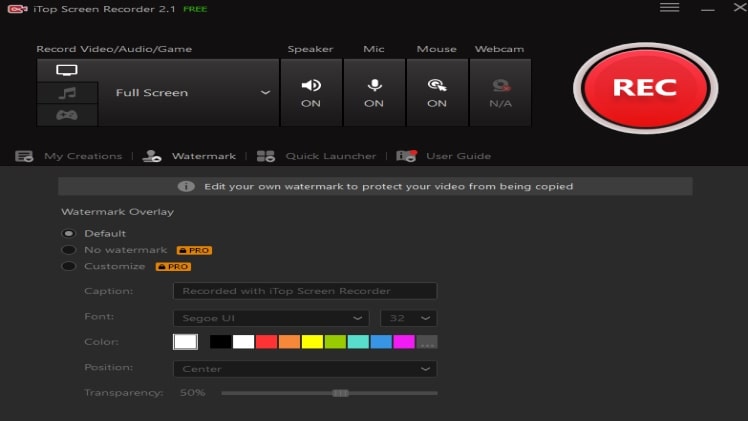
Quickly open the Zoom meeting app using iTop Screen Recorder. Select the settings you’d want to record now. This covers the size of your screen, speaker, microphone, and webcam.
Step 3: Use the hotkey to start the recording
To begin recording, press F9 on your keyboard or click the REC button. To cease recording, either click the same red button or press F11. The Zoom meeting will be saved locally on your computer.
Step 4: Edit and upload the video
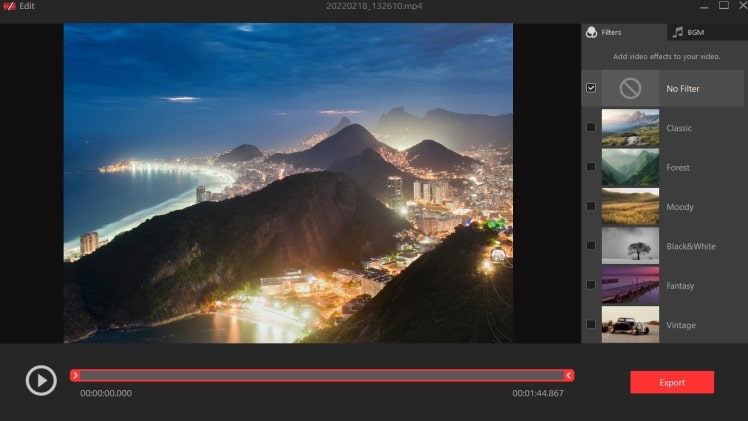
In the My Creation section, your screen recordings will be kept. You can save, edit, and remove recorded videos from your computer using this feature and then one-click upload your video to YouTube and Facebook.
What is the best way to record your Zoom Meeting online?
You can also record your Zoom meetings online with iTop Online Screen Recorder. It doesn’t require any downloads or plugins, and it runs in your default browser. All you have to do now is choose a screen size and you’re ready to go. Here’s how to do it:
- Activate the screen recording feature by pressing the Record Now button.
- Select the audio settings and click the Next button after selecting the recording name.
- Now you can choose the screen size or the app window that you want to use.
- To begin recording, press the record button.
- When you’re finished, click the stop button, and the recorded file will be saved to your computer automatically.
Conclusion
Recording your screen is a fun and easy method to break up a long video into chunks. With the pandemic, Zoom meetings are more in-line, thus it’s important to maintain track of your work progress. iTop Screen Recorder is an excellent tool for showing how to record Zoom meeting. All you have to do now is download the the software and start recording.
